What is Slack
Slack is essentially a chat room and messaging platform for your whole company, commonly used to replace email as your primary method of communication and sharing.
Notifications
In this context, notifications refer to the messages that are sent to a user out of a Clarify/Dovetail system.
These messages are typically the result of a business rule that fires.
Notification examples:
- A case has been dispatched to one of your queues
- A case has been assigned to you, or yanked away from you
- A subcase has been sitting idle for too long
- An action item is about to breach its SLA
- etc.
Slack Notifications
Instead of getting notified by email, a user can choose to receive notifications within Slack.
When a user chooses to receive Slack Notifications, a direct message will be sent to the employee's Slack channel.
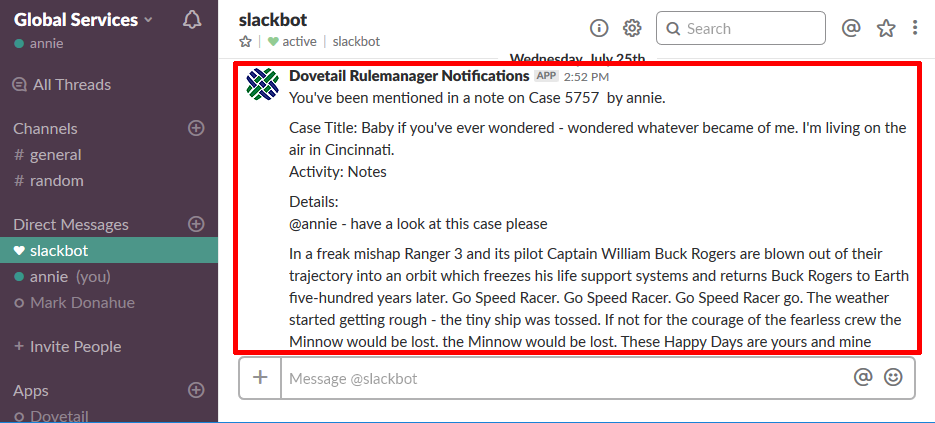
Slack Integration
If your company uses Slack, and your Dovetail/Clarify system administrators have configured the Slack integration, you can choose to receive your notifications via Slack.
Supported Versions
- The Slack Integration required Dovetail Rulemanager version 2.7 or higher
- The Slack Integration within Dovetail Agent is supported as of Dovetail Agent version 20.
User Instructions
To use Slack as your notification preference
- Retrieve your Slack Member ID
- Enter your Slack Member ID into the Dovetail/Clarify application
- Select Slack as a Notification Preference
1. Retrieve your Slack Member ID
Dovetail uses the user's Slack Member ID to message a user within Slack, so you must enter your Slack Member ID into the Dovetail/Clarify application.
Note: Slack Member ID is not the same as Slack Username! See this Slack post for more information
- Within Slack, Click on your UserName
- Select the
Profile & Accountoption - Click the
More Actionsdown arrow - There you will see (and have the option to copy) your member ID
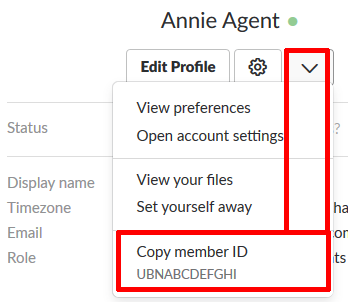
2. Enter your Slack Member ID into the Dovetail/Clarify application
Paste that Slack Member ID into the Slack Member ID field on the employee profile page within Dovetail Agent, or on the Employee form within the Clarify Classic Client, depending on your application.
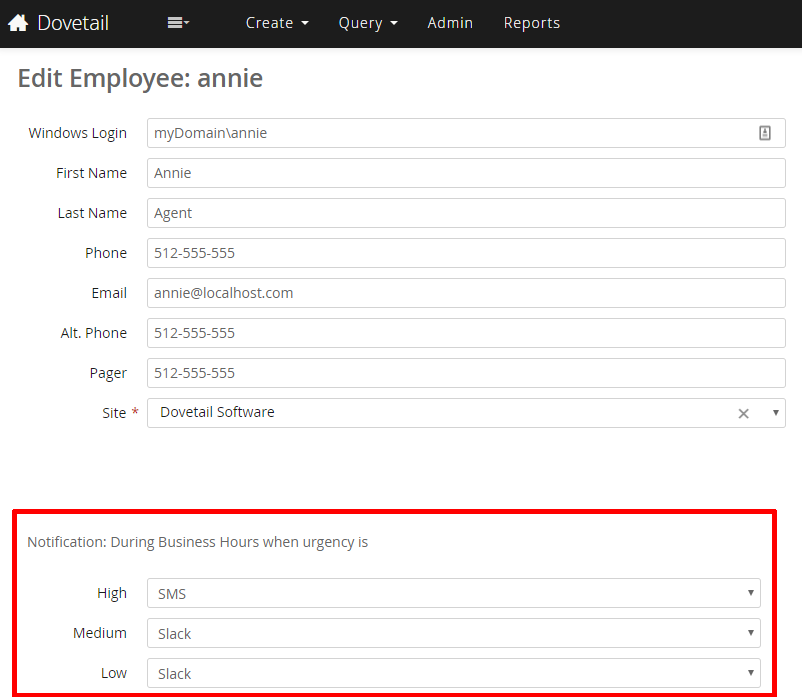
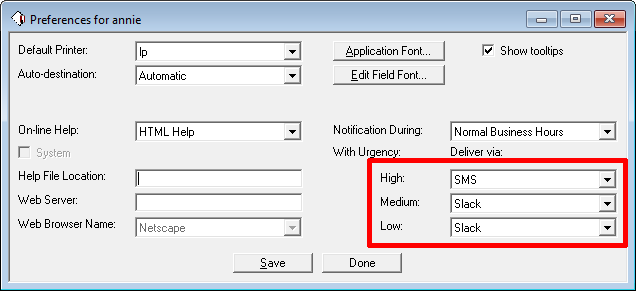
3. Select Slack as a Notification Preference
Select Slack as a notification preference, either in Dovetail Agent or in the Clarify Classic Client
Dovetail Agent
Clarify Classic Client
Admin Instructions
- Refer to the Dovetail Rulemanager documentation for complete instructions on configuring the Slack Integration, including:
- Creating a Slack Bot App
- Rulemanager Configuration
- Options for configuring the database field that stores an employee's Slack Member ID
- Add Slack as a option in the Notifications dropdown list (both for Dovetail Agent and for the Clarify Classic Client)
- How to retrieve Slack Member IDs for all users
- Refer to the Dovetail Agent documentation for complete instructions on enabling Slack as a notification option within Dovetail Agent, including:
- Set the
SlackNotifications.FeatureEnabledsetting to true - Add
Slackas an option in the Notification Types user-defined list.