The Case Survey feature allows for sending a short survey to an employee via email, typically after the case is closed, to gauge how well a case was handled.
The Case Survey includes a score (such as 1-5, or 1-10), and additional notes.
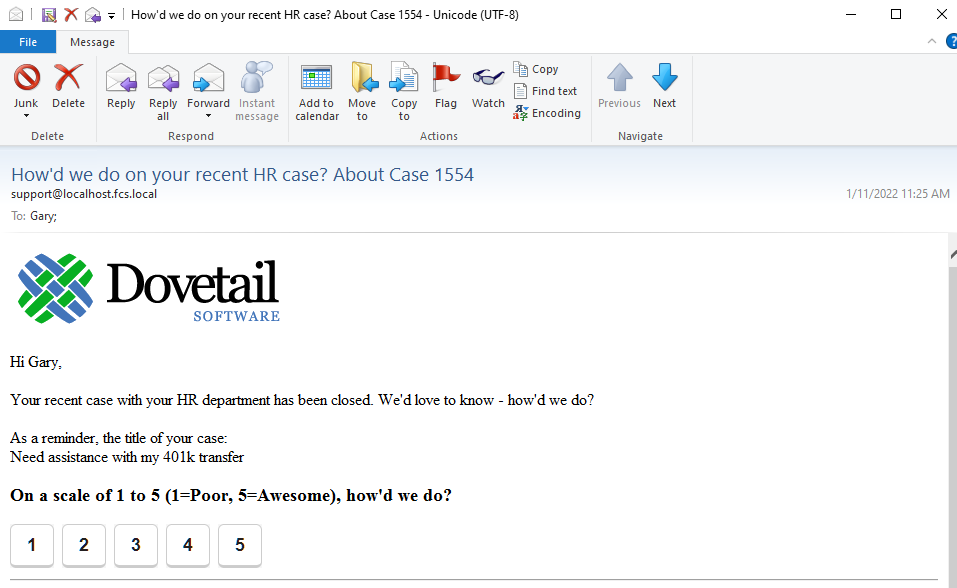
General Flow of a Case Survey
- An event rule sends an email to an employee, typically after a case is closed
- Employee receives the email, clicks one of the score numbers (typically 1-5, or 1-10)
- This opens a link to the Dovetail web page
- On the Dovetail web page, the employee's selected score is shown, and the employee is prompted to enter notes
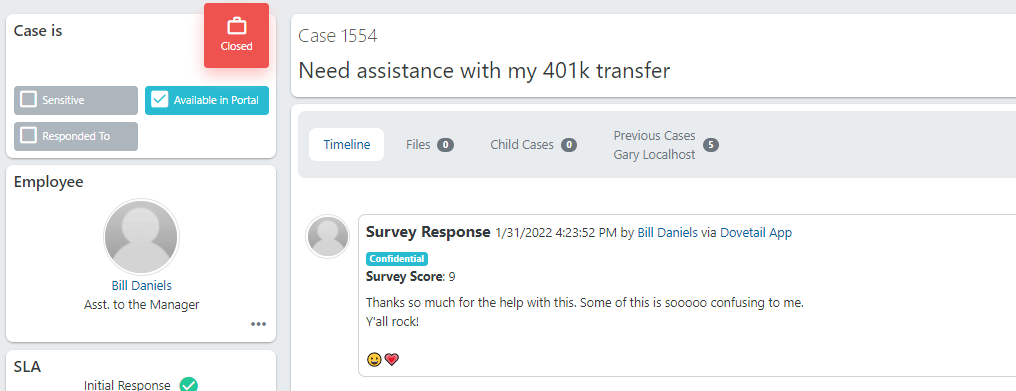
- Survey score and notes are submitted, and saved to the database, as a confidential Survey Response activity on the case
- Employee is presented with a Thank You message
Case Survey Setup
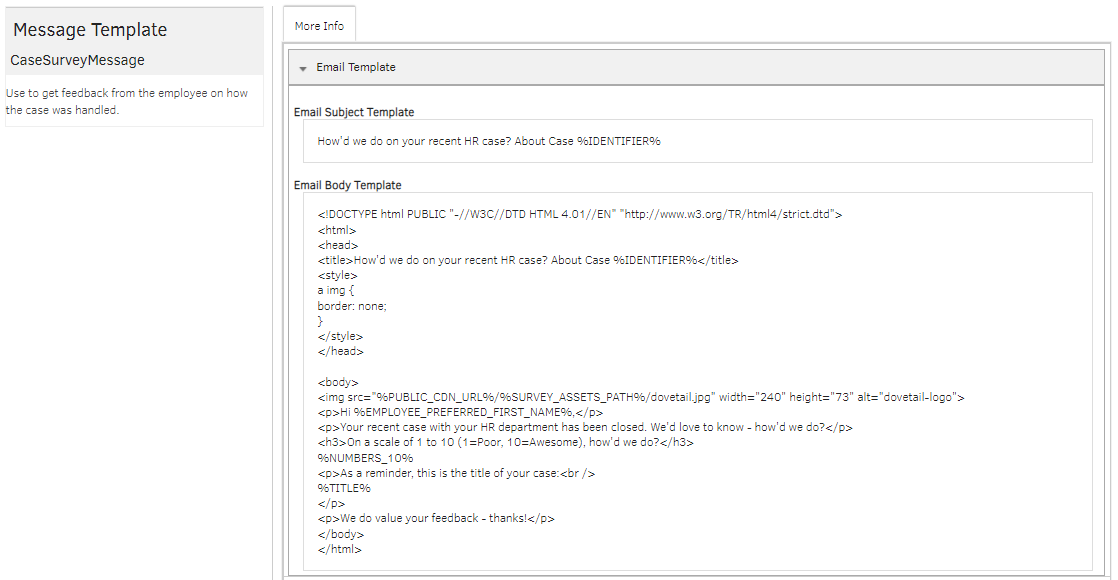
1. Message Template
Create/edit a message template for the survey, which is the content of the email sent to the employee. Your Dovetail system includes a baseline message template, named "CaseSurveyMessage", that you can either edit, or use as a starting point for your own template. The Message Template supports HTML, allowing for richly formatted emails.
2. Event Rule
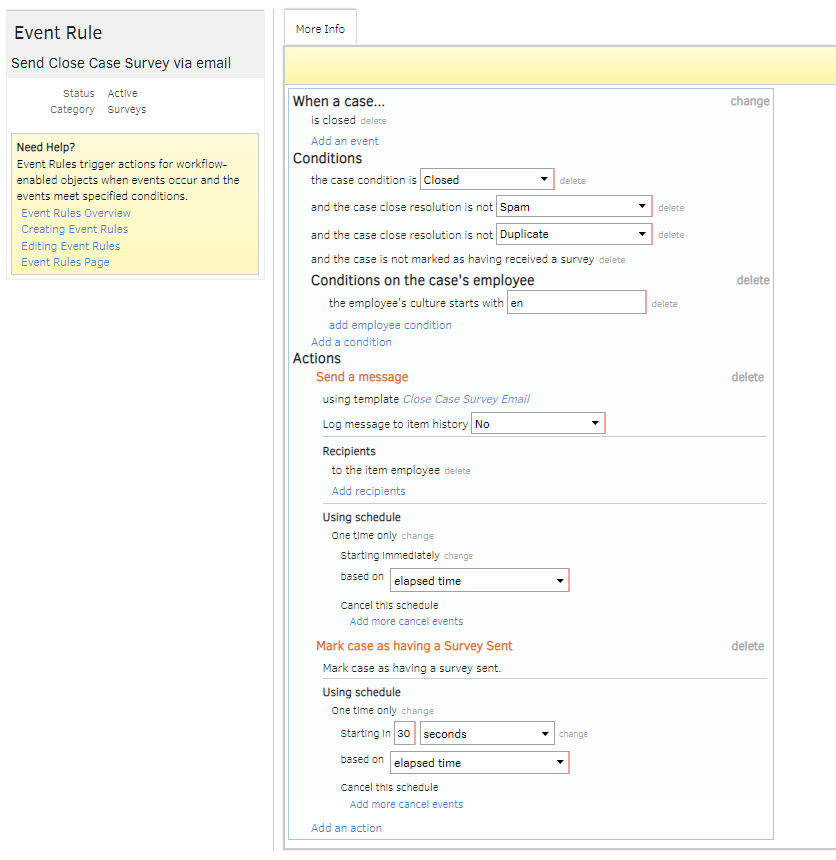
Create an event rule, which will send the email (using the message template) to the employee. There is not a Dovetail baseline rule - you need to set this up yourself.
Event Rule Suggestions
Recommendations
- Do NOT send the survey email to multiple recipients, as once the survey response is received, it's done. A second recipient could not respond.
- Do NOT send multiple survey email on the same event (event rule start action, such as when a case is closed), as once a survey response is received for an event, it's done.
When sending a survey based on a case being closed, consider…
- adding a condition of
the case condition is Closed. This is to account for the scenario where the case may have been reopened. - adding conditions to allow for scenarios where you do NOT want to send a survey. For example:
the case close resolution is not Spamorthe case close resolution is not Duplicate - delaying the survey for a short period of time (such as 2 days). This allows for some time for the employee to absorb the resolution, and to account for the scenario where the case may be reopened shortly thereafter.
- including a 2nd action of "Mark case as having a Survey Sent". This will allow for reporting on Surveys Sent.
- adding a condition of "and the case is not marked as having received a survey". This is to handle the situation where a case is closed, and then a survey is sent and received, and then the case is reopened, and then closed again, you may not want to send a second survey since the first one was already received.
Survey Response Page
This is the page the employee will see when clicking one of the links from the email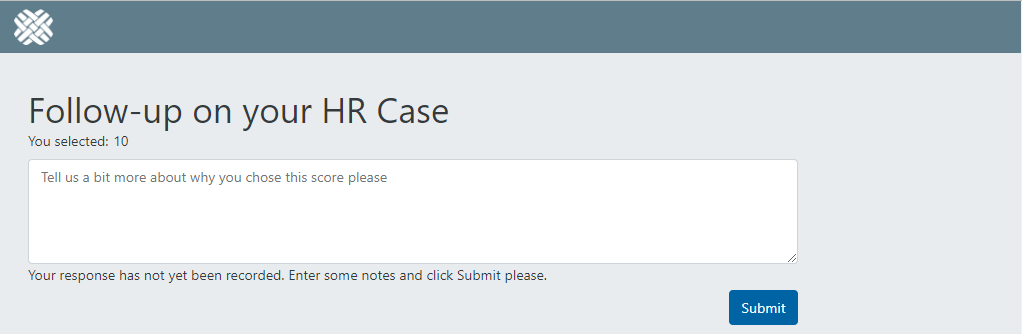
Case Timeline showing a received survey response
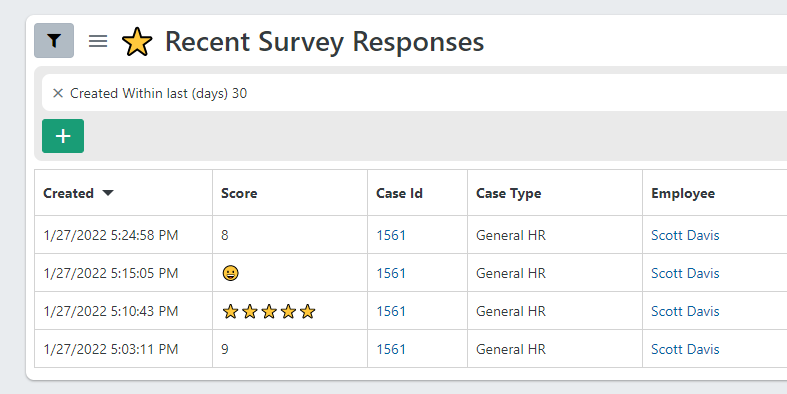
Query Survey Responses
Survey responses can be queried from the Query menu: Query --> Survey Response (requires the new "Query Survey Responses" permission)
Note: Since the survey response is part of a case, case data restrictions still apply when querying survey responses.
Customization Options
- The Message Template (email content) can be tailored using HTML. See below for examples
- The strings displayed on the web pages can be configured by changing the values in the "SurveyStrings" list. See the section below titled "Survey Strings List" for more details on what/where/how each string is used.
- The SurveyStrings.ScoreLabel string is what shows up in the case timeline (precedes the actual score)
- Score Validation. See below for details.
- The Expiration Days can be specified. This is how many days, after a survey is sent, that the survey can be submitted. See below for more details.
- The assumption is that Case survey responses are from the case employee. If they are not, then there is an application setting, that should be changed by the Dovetail Support/Implementation team. This affects how the survey response is displayed in the case timeline.
Score Validation
We want to be sure the scores submitted are valid. We don't want someone to manipulate a URL, and submit a score of "999", or "Beyonce is awesome" (even though she is!)
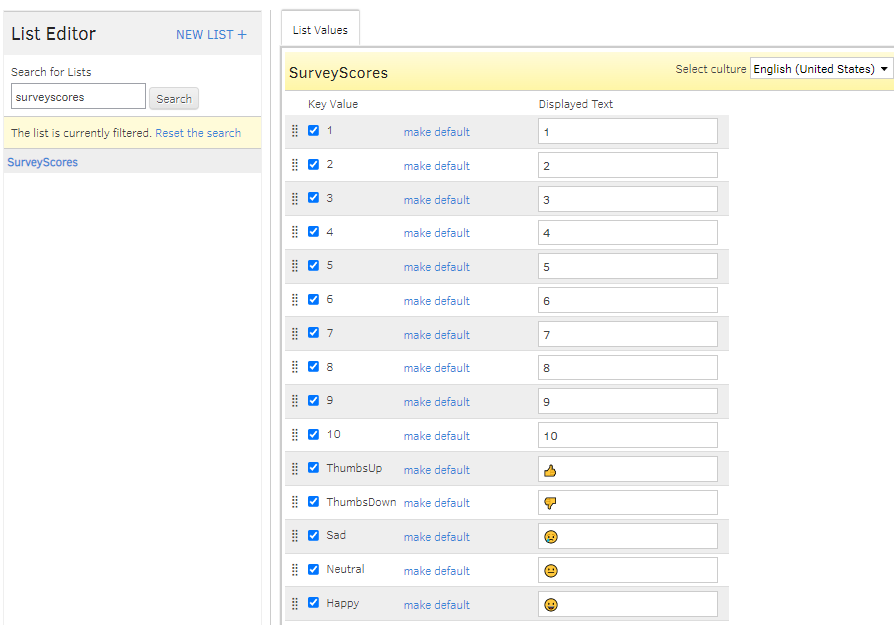
There is a list, named SurveyScores, that contains the valid survey scores.
By default, it contains the values 1 through 10.
If you wish to use other values, such as "Sad", "Neutral", "Happy" - then those need to be added to the SurveyScores list.
Expiration
There is an application setting that determines how many days, after a survey is sent, that the survey can be submitted.
This is to prevent old surveys from being submitted, beyond the time where the score and feedback is relevant.
The Expiration Days can be specified. This is how many days, after a survey has been sent, when a survey can be submitted. The default is 30 days.
This is an application setting, that can be changed by the Dovetail Support/Implementation team.
FAQ
Can I send different survey emails?
Yes, you can. You can create different event rules that use different message templates, which provides options for the format and content of the email.
Can I have different survey response web pages?
No. There is only survey response page available.
Does the employee have to log in to access the survey response page?
No. The survey response page does not require an employee to login.
Can you send multiple surveys on a case?
Yes, you can. However be aware that sending too many surveys to an employee will likely reduce the response rate.
How to limit to one survey per case?
For example, if you have a survey that is sent when a case is closed, and then a survey is sent and received, and then the case is reopened, and then closed again, you may not want to send a second survey.
You can limit this using event rules.
- For the event rule that fires when a survey is received, add an action of "Mark case as having a Survey Received"
- For the event rule that sends a survey, add a condition of "the case is not marked as having received a survey"
What happens if the employee clicks the survey score link again, after the survey has already been submitted?
The employee will be presented with a message that a response has already been recorded for this survey. The specific message can be customized, using the SurveyStrings list.
What happens if the employee clicks the survey score link after the expiration date (by default, 30 days after the survey was emailed)?
The employee will be presented with a message that the survey link has expired. The specific message can be customized, using the SurveyStrings list.
Can I use my own images for the scores, within the email?
For example, could I use stars, or emojis, or sad/neutral/happy faces, rather than numbers?
Yes, you can. You would need to host the images somewhere publicly accessible (or embed them in the email), and then alter the message template to include the proper links to those images.
Can I use my own logo rather then the Dovetail logo, within the email?
Of course. You can simply edit the template and remove the logo, or edit the template to reference your own logo.
You would need to host the logo image somewhere publicly accessible. It's common for companies to have their logo on the corporate website, so referencing the logo from your corporate website is an option.
Can I use 1-5, instead of 1-10?
Of course. Simply edit the message template, and use the %NUMBERS_5% variable, rather than %NUMBERS_10%
Can I make the score be optional (not required)?
It may be possible, but it is not recommended. Survey response rates are shown to be higher when the recipient is presented with a clickable score.
Consider using a simplified set of score options, such as Thumbs Up and Thumbs Down.
Can I make the feedback notes be optional (not required)?
Currently, no. This is something we are considering for a future version though. If this is important to you, please let us know.
How to test what the survey email will look like?
Here's one way to do this:
- add a condition to the event rule; such as
Case ID is equal to 12345(where 12345 is the ID of your test case) - close the test case
- the event rule should then fire only on that case
Testing in your Dovetail test tenant is always a good idea.
How to send a survey in different languages?
Create multiple event rules - one for each country. In the event rule, use a condition based on "the employee's primary site's country", and use a message template specific to that country's primary language.
Or, create a rule for each language and/or culture, and use a condition based on the "the employee's culture", and use a message template specific to that culture. e.g. "the employee's culture is equal to es-mx", or "the employee's culture starts with es", and that will apply to all Spanish cultures. And use a message template specific to that language and/or culture.
What culture (language) is the survey response page rendered in?
The survey response page will be displayed in the culture based on the culture set in the browser's settings.
Can I have a survey for something other than a case?
Can I have a survey for something other than a case, such as a survey on a solution or just to an employee, without the context of a case?
Currently, no. These are meant for use only in the context of a case.
What if the employee responds to the survey email, as opposed to clicking one of the links?
It is recommended to include the About Case %IDENTIFIER% in the email. Thus, if the employee responds to the email, the email will be logged to the correct case.
Will the survey response be displayed in the Portal app?
The survey response is a confidential activity on the case. So by default, no. But, if that activity is changed to Non-Confidential, then yes, the employee will be able to see the survey response in the Portal app.
Can I trigger an event rule when a survey response is received?
Yes. For the event rule, use a start event of when a case has a survey response logged
Can I report on survey responses?
Yes, the survey responses are available within the reporting application.
In addition, you can get at your survey results using a Query, and even export those results to Excel.
Survey Strings List
The strings displayed on the survey response web pages can be configured by changing the values in the "SurveyStrings" list.
Survey Message Examples
Below are a few examples of varying options for case survey responses.
The most common one is a survey with numbers (1-5 or 1-10).
Even though you can have different options, please consider whether it's actually a good idea to do so.
1-5

<h3>On a scale of 1 to 5 (1=Poor, 5=Awesome), how'd we do?
   h3>
   %NUMBERS_5%
1-10

<h3>On a scale of 1 to 10 (1=Poor, 10=Awesome), how'd we do?
   h3>
   %NUMBERS_10%
5 stars
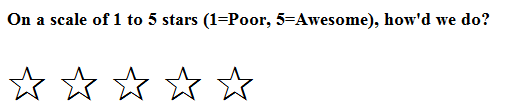
<head><style>.star{font-size: 48px;color:black;}.score{text-decoration:none;}
   style>
   head><h3>On a scale of 1 to 5 stars (1=Poor, 5=Awesome), how'd we do?
   h3>

   <a class="star" href="%AGENT_URL%public/case-survey/%ID%/%ACTION_IDENTIFIER%/1star"><span class="score">✰
   span>
   a>  <a class="star" href="%AGENT_URL%public/case-survey/%ID%/%ACTION_IDENTIFIER%/2stars"><span class="score">✰
   span>
   a>  <a class="star" href="%AGENT_URL%public/case-survey/%ID%/%ACTION_IDENTIFIER%/3stars"><span class="score">✰
   span>
   a>  <a class="star" href="%AGENT_URL%public/case-survey/%ID%/%ACTION_IDENTIFIER%/4stars"><span class="score">✰
   span>
   a>  <a class="star" href="%AGENT_URL%public/case-survey/%ID%/%ACTION_IDENTIFIER%/5stars"><span class="score">✰
   span>
   a>
Happy / Neutral / Sad
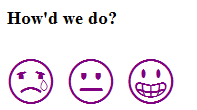
<head><style>.smileys{font-size: 48px;}.score{text-decoration:none;}
   style>
   head><h3>How'd we do?
   h3>
   <a class="smileys" href="%AGENT_URL%public/case-survey/%ID%/%ACTION_IDENTIFIER%/Sad"><span class="score">sad-emoji-goes-here
   span>
   a>  <a class="smileys" href="%AGENT_URL%public/case-survey/%ID%/%ACTION_IDENTIFIER%/Neutral"><span class="score">neutral-emoji-goes-here
   span>
   a>  <a class="smileys" href="%AGENT_URL%public/case-survey/%ID%/%ACTION_IDENTIFIER%/Happy"><span class="score">happy-emoji-goes-here
   span>
   a>
Additional Technical Details
Survey Response URL
The format of the survey response URL is:https://tenant.dovetailnow.com/public/case-survey/CASE-GUID/ACTION-GUID/SCORE
with message template variables, it would look like:%AGENT_URL%public/case-survey/%ID%/%ACTION_IDENTIFIER%/SCORE
and when it all resolves, it would look like:https://tenant.dovetailnow.com/public/case-survey/79e7c3ed-f4f0-40f4-baf9-ae1a00f8c3a9/e59e32d4-d2ee-46e9-a15a-339b830a72d6/9
The %ACTION_IDENTIFIER% is the internal Id (guid) of the WorkFlowLog for the event that started the event rule (such as Close Case).
The %ID% is the internal Id (guid) of the Case. This is different than the Case ID Number, which is the user-friendly case number.
Case Surveys are available as of version 2022.1
Keywords
guide
NPS
net promoter score
satisfaction surveys