Custom styles can be applied to a customer's instance of the Portal app by entering custom styles (CSS) within the application settings.
Please keep in mind - as you start overriding styles (especially doing more complex styling) - be sure to test on different browsers. Depending on the customer, you may also want to test with mobile devices/browsers.
The less style edits the better. The more you change, the more testing should be done now, and with future upgrades.
Note: This has changed slightly as of version 18.2. Now, when we save the customCSS, we actually save it to a file in S3, using the CustomCssFileName. In addition, you can put the app into a CustomCssDevelopmentMode, so CSS changes take effect immediately.
Custom CSS settings
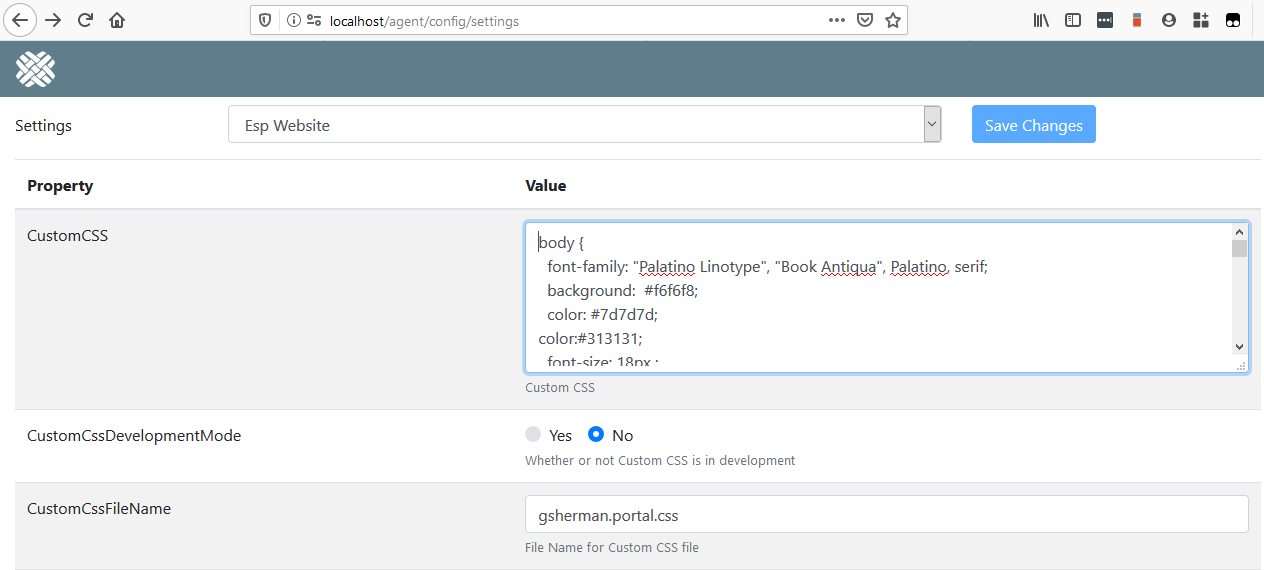
The custom styles will override the baseline default styles.
Workflow
Workflow
- set the CustomCssDevelopmentMode to Yes
- add a simple, visible CSS change to the customCSS, such as
body {
  background:  red;
}
- enter a unique filename, such as
{tenant}.portal.css. For example:wdimp.portal.css - save changes
- It will take up to 2 minutes for the settings change to take affect.
- In the portal app, click F5 (Refresh), and you should see the page background turn red.
- After that, you can make changes to the customCSS, click Apply Changes, and your changes should take effect immediately (as you're in Custom Development Mode).
- Continue to iterate editing the customCSS until you're done.
- Once done, change the CustomCssDevelopmentMode back to No, and Apply Changes.
Optionally, you could also edit the styles using the browser's developer tools (F12), iterate over them, and once satisfied, then copy your styles into the customCSS setting.
Some additional technical details
When we save the customCSS, we actually save it to a file in S3.
When you're in development mode, the request to get that file has a unique identifier added to it, which forces the browser to reload it, rather than using a local cached version. This is how we can get our new CSS immediately, without having to wait 2 minutes.
If you look at the network tab in browser tools, you'll see a request like:https://s3-us-west-2.amazonaws.com/avatars.test.us-west-2.dovetailnow.com/default/mytenent.portal.css?v=637142723936007251
When you are NOT in development mode, that unique identifier is not added, so the browser can cache the file locally, which we want for performance reasons.
If you look at the network tab in browser tools, you'll see a request like:https://s3-us-west-2.amazonaws.com/avatars.test.us-west-2.dovetailnow.com/default/mytenant.portal.css
CSS validators
You can validate your CSS, to ensure that the syntax is correct
baseline styles
This is meant to demonstrate the classes that can be overridden, it is not meant to be used in its entirety except in cases when all classes in this template are being overwritten. The colors are currently the default we use as of the writing of this comment.
It's better to only override only the styles that you want. Don't just blindly copy/paste all of this into the Custom CSS setting.
body {
  background: #e7e9ec;
  font-size: 16px;
  color: #555;
}

// Overrides all the boxes including timeline boxes
.box {
  background-color: #fff;
}

/*
    Top Menu Header with Menu Options, and Search Input
*/

.main-menu {
    background-color: #3f3f3f;
    background-image: -webkit-linear-gradient(to bottom, #696969 0%,#3f3f3f 100%);
    background-image: -moz-linear-gradient(to bottom, #696969 0%,#3f3f3f 100%);
    background-image: -o-linear-gradient(to bottom, #696969 0%,#3f3f3f 100%);
    background-image: linear-gradient(to bottom, #696969 0%,#3f3f3f 100%);
}

/*
    Menu Links
*/
.main-menu-link {
  color: #EFEFEF;
}

.main-menu-link:hover {
  color: #0056b3;
}

.main-menu-search-button {
    color: #fff;
    background-color: #6c757d;
    border-color: #6c757d;
}

/* Search Input */
.search-input {
   border-color: rgb(206, 212, 218);
}

.main-menu-dropdown {
  background-color: #fff;
}

.main-menu-dropdown-link {
  color: #212529;
}

.main-menu-dropdown-link:hover {
    color: #16181b;
    background-color: #f8f9fa;
}

/*
    Localization Selector
*/

.locale-switcher-image {
   color: #EFEFEF;
}

.locale-selected {
  color: rgb(108, 117, 125);
}

/*
    Sub Menu that renders below the Main Menu
*/

.sub-menu {
    background-color: #1a1a1a;
    background-image: -webkit-linear-gradient(to bottom, #1a1a1a 0%,#303030 100%);
    background-image: -moz-linear-gradient(to bottom, #1a1a1a 0%,#303030 100%);
    background-image: -o-linear-gradient(to bottom, #1a1a1a 0%,#303030 100%);
    background-image: linear-gradient(to bottom, #1a1a1a 0%,#303030 100%);
}

/*
    Sub Menu Links
*/

.sub-menu-link {
  color: rgb(51, 51, 51);
}

.sub-menu-link:hover {
  color: #85BBFF;
}

.sub-menu-dropdown-link {
  color: #212529;
}

.sub-menu-dropdown-link:hover {
    color: #16181b;
    background-color: #f8f9fa;
}

.sub-menu-dropdown {
  background-color: #fff;
}

/*
    Login
*/

.login-heading {
  background: #333;
  color: #fff;
}

.login-panel {
  background-color: #fff;
}

/* Login Button */
.login-button {
  color: #fff;
  background-color: #0275d8;
  border-color: #0275d8;
}

/*
    Main Page Left Side Boxes
*/

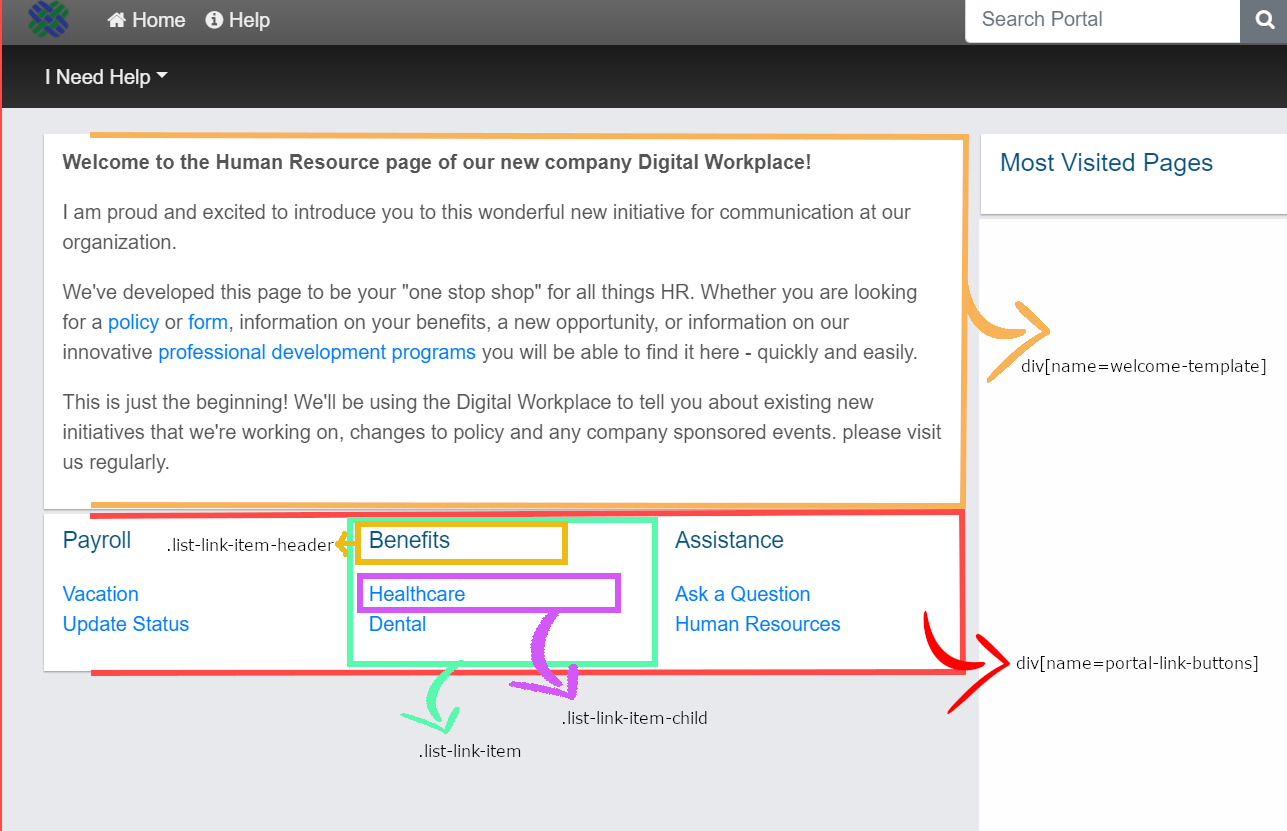
div

   [name=welcome-template] {


   background-color:
   #fff;

}


   /* Link Panel below the Welcome Template */


   div

    [name=portal-link-buttons] {


    background-color:
    #fff;

}


    .list-link-item {


    background-color:
    #fff;

}


    .list-link-item-header {


    color:
    #0b537f;

}


    .list-link-item-child {


    color:
    #007bff;

}


    /*
    Main Page Right Side Boxes
*/


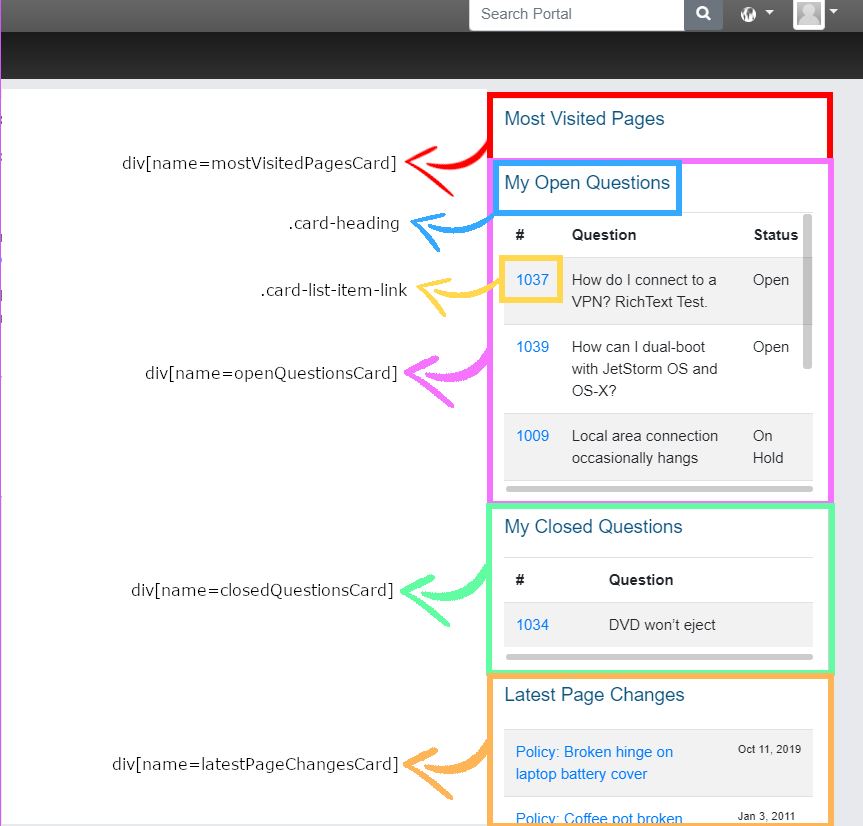
    .card-heading {


    color:
    #0b537f;

}


    /* Links in the Cards on the Right of the Main Page */


    .card-list-item-link {


    color:
    #007bff;

}


    .case-list-item-table {


    color:
    #212529;


    border-color: grey;

}


    .solution-list-table {


    color:
    #212529;


    border-color: grey;

}


    div

     [name=mostVisitedPagesCard] {


     background-color:
     #fff;

}


     div

      [name=openQuestionsCard] {


      background-color:
      #fff;

}


      div

       [name=closedQuestionsCard] {


       background-color:
       #fff;

}


       div

        [name=latestPageChangesCard] {


        background-color:
        #fff;

}


        /*
    Case View
*/


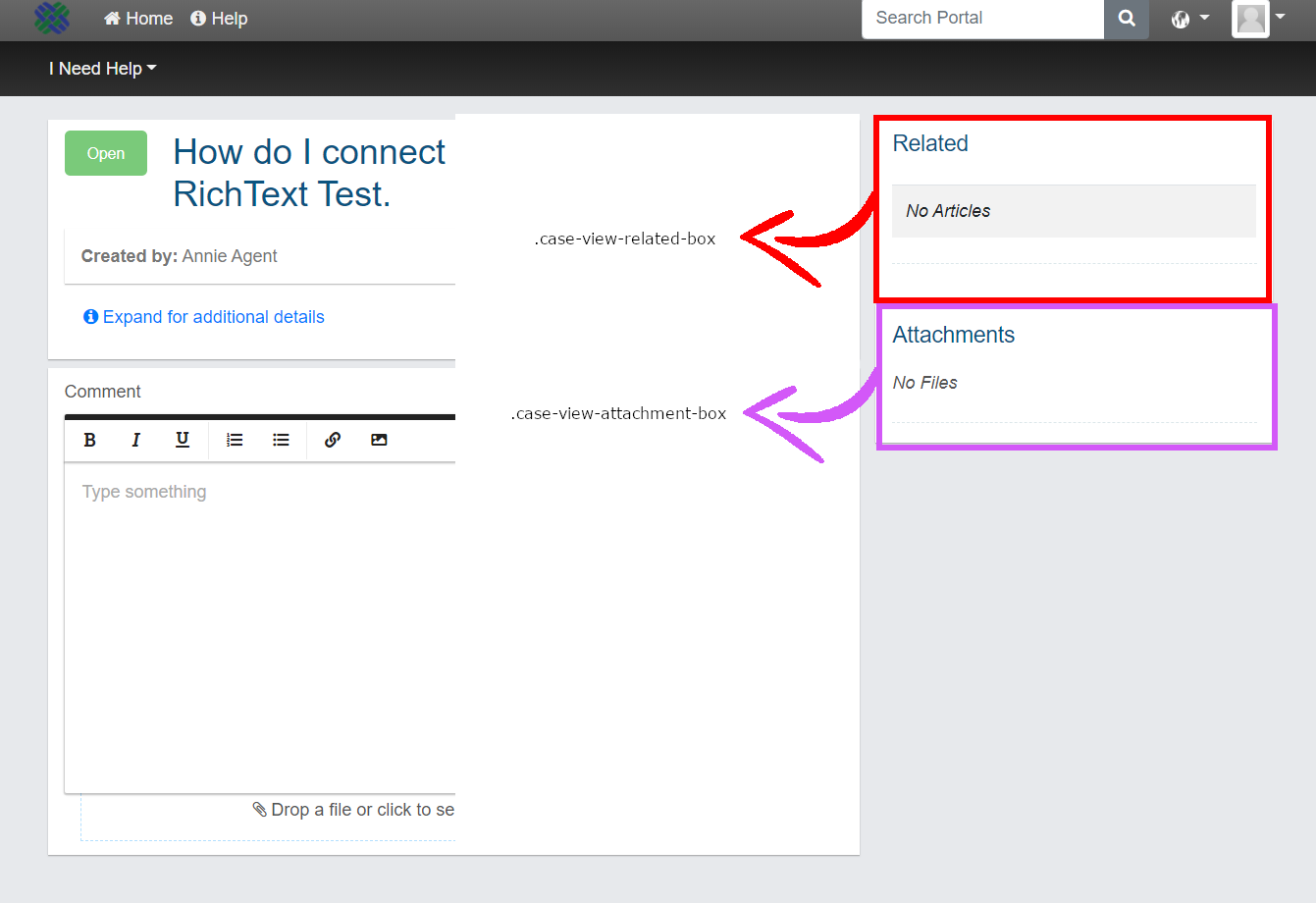
        .case-view-related-box {


        background-color:
        #fff;

}


        .case-view-attachment-box {


        background-color:
        #fff;

}


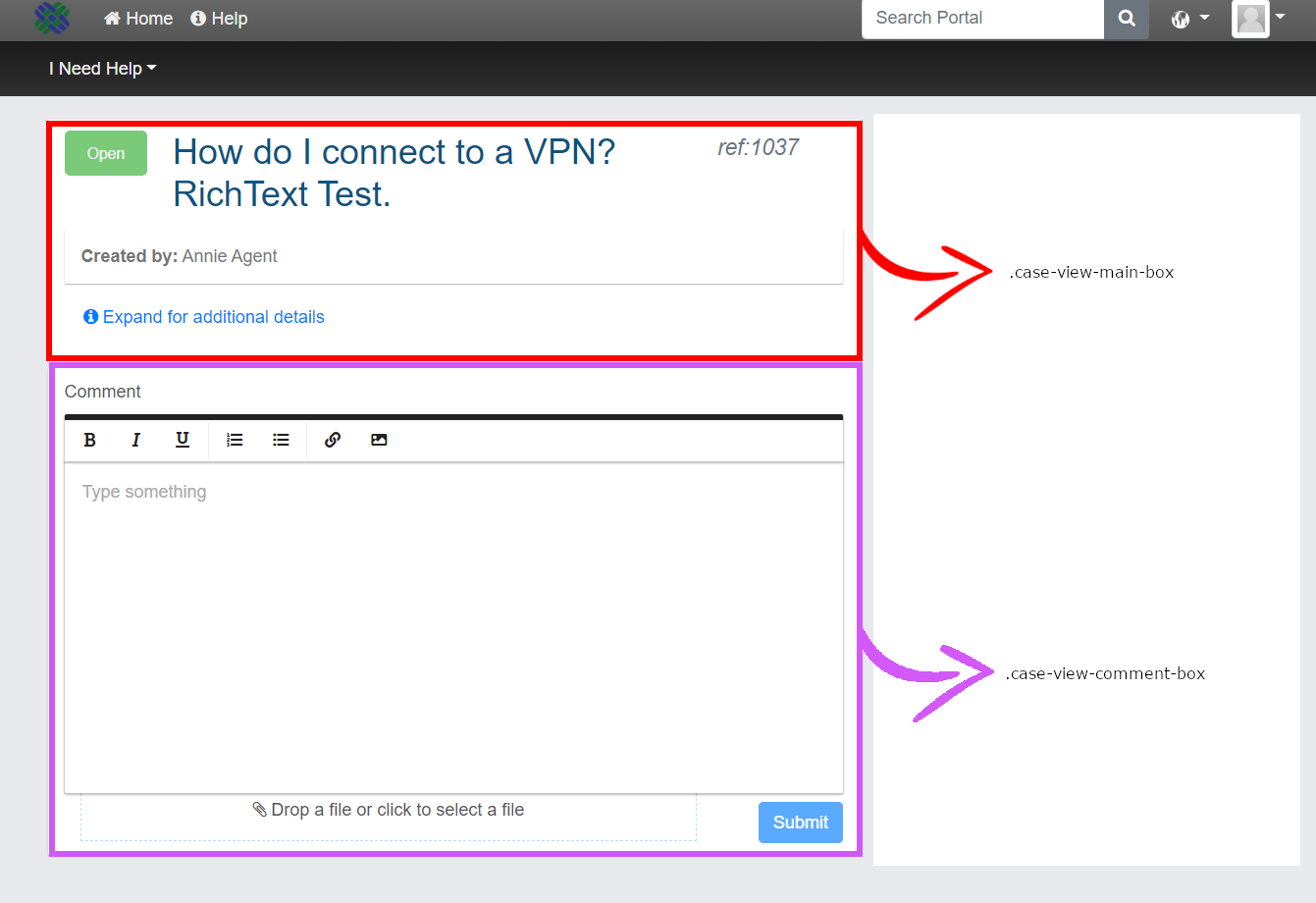
        .case-view-comment-box {


        background-color:
        #fff;

}


        .case-view-main-box {


        background-color:
        #fff;

}


        /*
    New Case View
*/


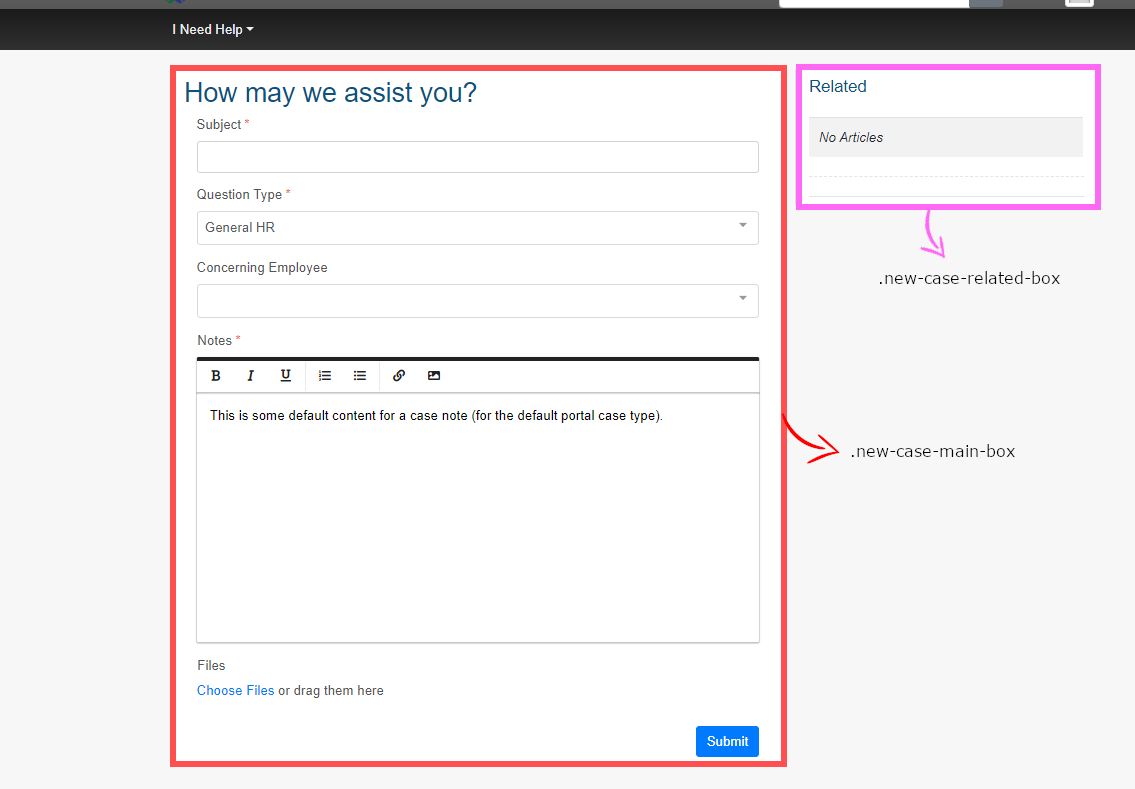
        .new-case-related-box {


        background-color:
        #fff;

}


        .new-case-main-box {


        background-color:
        #fff;

}


        /*
    Solution View
*/


        .solution-view-related-box {


        background-color:
        #fff;

}


        .solution-view-attachment-box {


        background-color:
        #fff;

}


        .solution-view-feedback-box {


        background-color:
        #fff;

}


        .solution-view-main-box {


        background-color:
        #fff;

}


        .solution-view-comment-box {


        background-color:
        #fff;

}


        /*
    Search View
*/


        .search-heading {


        background-color:
        #fff;

}


        div

         [name=searchResults] {


         background-color:
         #fff;

}
Menus

Sub-Menus

Home page / welcome page
Home page - sidebar
Case page
Case page - Sidebar
New case page
Simple example
Hide the banner image, and set the colors of the main and sub-menus, and the links within
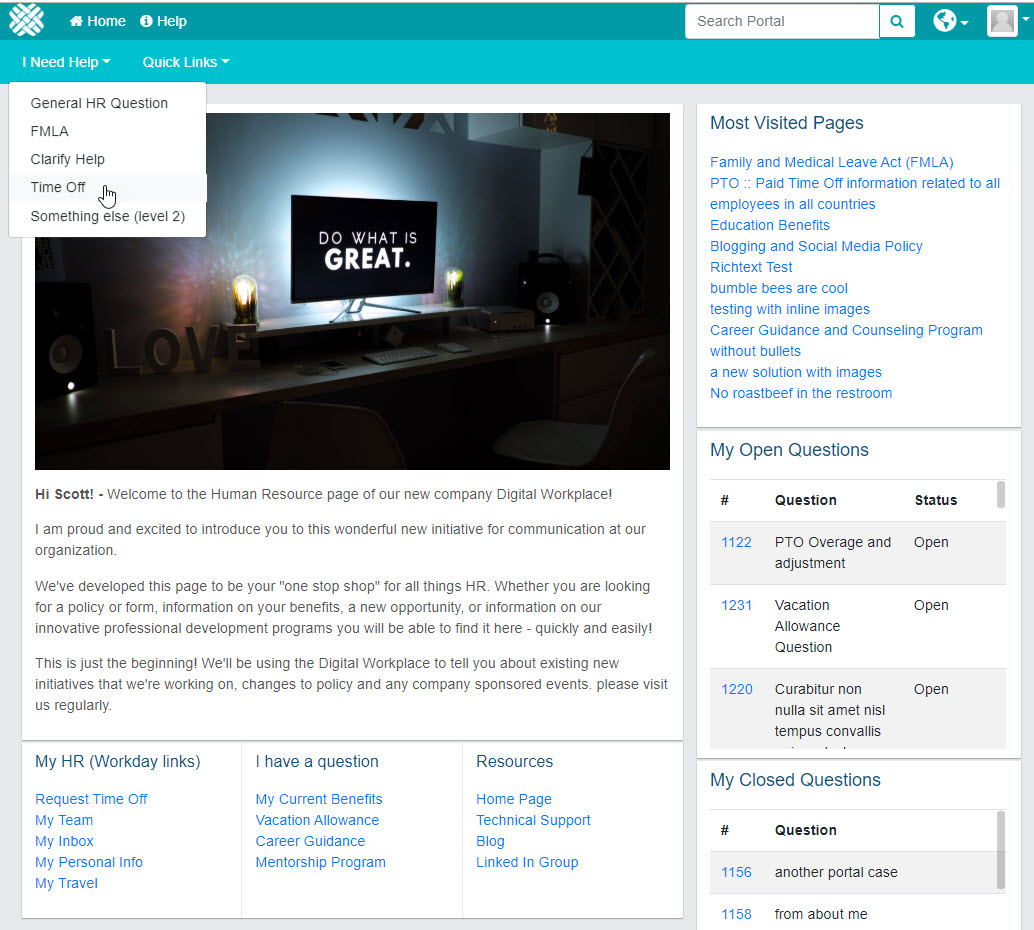
Custom CSS
/* Hide the banner image */
div.banner{display:none;}

/* set the colors of the main menu and links */
.main-menu {
   background-color: #009aa6;
   background-image:none;
}

.main-menu-link {
  color: white;
}

.main-menu-link:hover {
  color: white;
}

.main-menu-search-button {
    color: #009aa6;
    background-color: white;
    border-color: #009aa6;
}

.main-menu-search-button i:hover {
    color: #009aa6;
}

/* set the colors of the sub-menu and links */

.sub-menu {
    background-color: #00c1d0;
    background-image: none;
}
.sub-menu-link {
  color: white;
}

.sub-menu-link:hover {
  color: white;
}
Advanced Example
Lots of changes to fonts, colors, menus, individual widgets, etc.
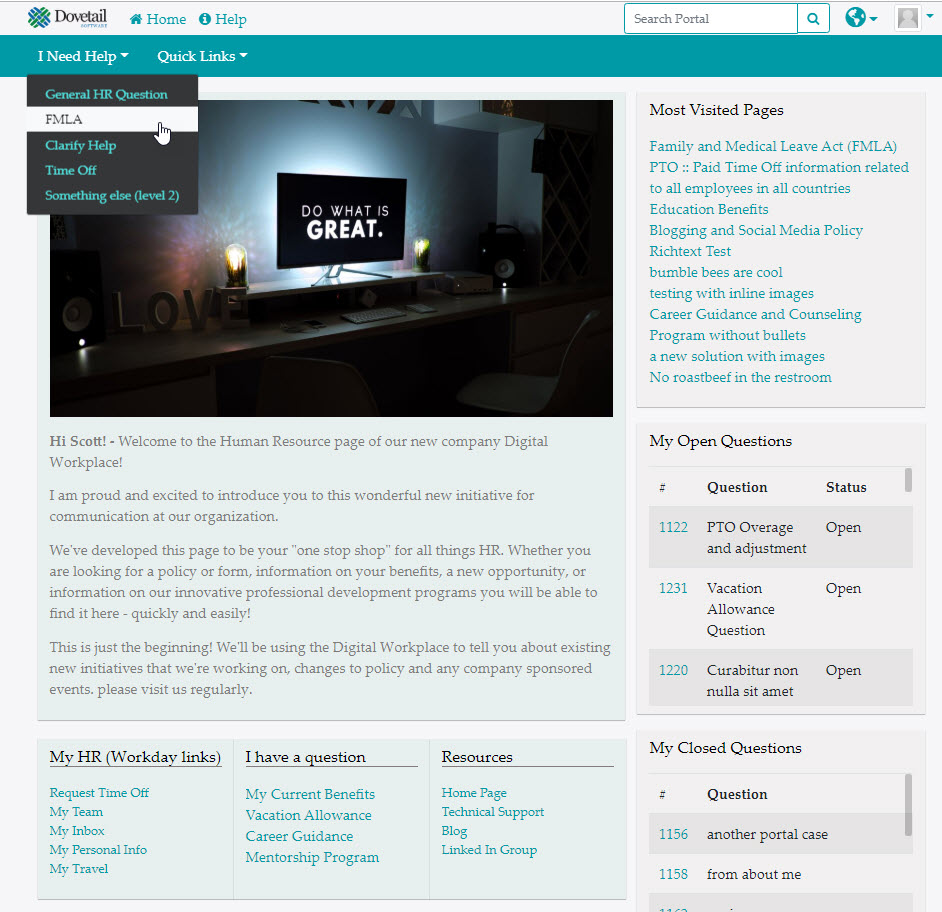
Custom CSS: https://gist.github.com/gsherman/dfabce5690bcfd70cc2f72c15b688877
Examples
Change the color of the solution type badge within the latestPageChangesCard and the mostVisitedPagesCard on the home page
div

   [name=latestPageChangesCard]
   span
   .badge {


   background-color:
   #009aa6;

}


   div

    [name=mostVisitedPagesCard]
    span
    .badge {


    background-color:
    #009aa6;

}
Hide the help link in the header (for both the sign in page and logged-in pages)
a.help-contact, a.signin-help-contact {display:none;}
Hide the My Questions link in the header
a.my-questions {display:none;}
Hide the Home link in the header
a[name=homeBtn] { display: none; }
style the case update counter on the My Questions link in the header
.case-update-badge{ color:red;background-color:yellow !important;}
Allow hiding case creation link on open cases card
button.ask-question-case-list {display:none;}
Change the color of the chat link in the header
li#chatSE a {
  color:red;
}
Chat Icon
For the chat icon (the one that's normally in the lower-right corner) - I'm pretty sure the colors/image/text/placement/etc all all controlled within the SnapEngage setup.
That icon is within an iframe, so we can't access it directly. But we can access its container. So, we could adjust its size, or add some animation to it.
Make it bigger
div#designstudio-button {
    height: 100px;
    width: 100px;
    transform:

   scale(1.5);

}
or Add some animation
div#designstudio-button{
  animation: bounce-top 2s ease;
  animation-iteration-count: 5;
  animation-delay: 2s;
}

/* ----------------------------------------------
 * Generated by Animista on 2020-9-1 15:35:31
 * Licensed under FreeBSD License.
 * See http://animista.net/license for more info.
 * w: http://animista.net, t: @cssanimista
 * ---------------------------------------------- */

@-

   webkit-

    keyframes bounce-top{0%{
    -webkit-transform:

     translateY(-45px);
     transform:

      translateY(-45px);
      -webkit-animation-timing-function:ease-in;
      animation-timing-function:ease-in;
      opacity:
      1}24%{
      opacity:
      1}40%{
      -webkit-transform:

       translateY(-24px);
       transform:

        translateY(-24px);
        -webkit-animation-timing-function:ease-in;
        animation-timing-function:ease-in}65%{
        -webkit-transform:

         translateY(-12px);
         transform:

          translateY(-12px);
          -webkit-animation-timing-function:ease-in;
          animation-timing-function:ease-in}82%{
          -webkit-transform:

           translateY(-6px);
           transform:

            translateY(-6px);
            -webkit-animation-timing-function:ease-in;
            animation-timing-function:ease-in}93%{
            -webkit-transform:

             translateY(-4px);
             transform:

              translateY(-4px);
              -webkit-animation-timing-function:ease-in;
              animation-timing-function:ease-in}25%,55%,75%,87%{
              -webkit-transform:

               translateY(0);
               transform:

                translateY(0);
                -webkit-animation-timing-function:ease-out;
                animation-timing-function:ease-out}100%{
                -webkit-transform:

                 translateY(0);
                 transform:

                  translateY(0);
                  -webkit-animation-timing-function:ease-out;
                  animation-timing-function:ease-out;
                  opacity:
                  1}}@

                   keyframes bounce-top{0%{
                   -webkit-transform:

                    translateY(-45px);
                    transform:

                     translateY(-45px);
                     -webkit-animation-timing-function:ease-in;
                     animation-timing-function:ease-in;
                     opacity:
                     1}24%{
                     opacity:
                     1}40%{
                     -webkit-transform:

                      translateY(-24px);
                      transform:

                       translateY(-24px);
                       -webkit-animation-timing-function:ease-in;
                       animation-timing-function:ease-in}65%{
                       -webkit-transform:

                        translateY(-12px);
                        transform:

                         translateY(-12px);
                         -webkit-animation-timing-function:ease-in;
                         animation-timing-function:ease-in}82%{
                         -webkit-transform:

                          translateY(-6px);
                          transform:

                           translateY(-6px);
                           -webkit-animation-timing-function:ease-in;
                           animation-timing-function:ease-in}93%{
                           -webkit-transform:

                            translateY(-4px);
                            transform:

                             translateY(-4px);
                             -webkit-animation-timing-function:ease-in;
                             animation-timing-function:ease-in}25%,55%,75%,87%{
                             -webkit-transform:

                              translateY(0);
                              transform:

                               translateY(0);
                               -webkit-animation-timing-function:ease-out;
                               animation-timing-function:ease-out}100%{
                               -webkit-transform:

                                translateY(0);
                                transform:

                                 translateY(0);
                                 -webkit-animation-timing-function:ease-out;
                                 animation-timing-function:ease-out;
                                 opacity:
                                 1}}
Create a new case button in the My Open Cases widget on the home page
This button is only visible when the employee has no open cases.
Baseline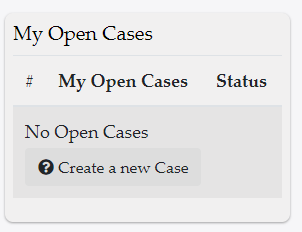
Styled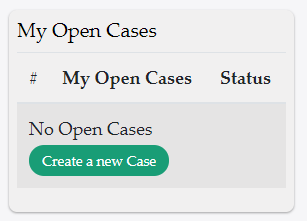
button.ask-question-case-list .fa-question-circle{
    display: none;
}

button.ask-question-case-list{
background-color: #199d76;
    border-radius: 16px;
    border: 1px solid transparent;
    color: #fff;
    cursor: pointer;
    font-size: .875rem;
    padding: 4px 12px;
    text-decoration: none;
    -webkit-transition: all .2s;
    transition: all .2s;
}

button.ask-question-case-list:hover {
    background-color: #f8f9fa;
    border: 1px solid #343a40;
    color: #343a40;
    outline: none;
    text-decoration: none;
}
Change the colors of bullets within solutions
.solution-view-main-box ul {
  list-style: none; /* Remove default bullets */
}

.solution-view-main-box  ul li::before {
  content: "\2022";  /* Add content: \2022 is the CSS Code/unicode for a bullet */
  color: red; /* Change the color */
  font-weight: bold; /* If you want it to be bold */
  display: inline-block; /* Needed to add space between the bullet and the text */
  width: 1em; /* Also needed for space (tweak if needed) */
  margin-left: -1em; /* Also needed for space (tweak if needed) */
}
Add a body background image
body{
   background-image:

   url(https://live.staticflickr.com/65535/51149645665_3c2deae055_k.jpg);


   background-size: cover;

}
Hide the solution stars / feedback rating within the search results
div[name="searchResults"] > div.search-result-item > div.fade-block > div.col-2 {display:none;}
add the employee's avatar as an image to a page
Edit a solution, and paste the following into the solution body:< img class="avatar class="img-thumbnail" src="%Employee_Avatar_Image_Url%"/>
Style a specific solution page
pages have a .page-id class (e.g. .page-1119), which allows for per-page styles.
.page-1119 {background-color:yellow;}
.page-1119 .solution-view-main-box {background-color:red; }
Disable / Hide the Create Case form
/* Hide the create-case form */
div.new-case-main-box{display:none;}
div.new-case-related-box{display:none;}

/* Add a message */
section#NewCase::before {
  content: "Case Creation has been disabled.";
  color: red;
  font-size:24px;
}
Reorder the new case page, placing the question type before the subject
/* Subject Label */
#NewCase div.form-group:nth-child(2)  > label:first-of-type{order:1;}

/* Subject Text */
#NewCase div.form-group:nth-child(2)  > div:first-of-type{order:1;}

/* Question Type */
#NewCase div

   [name=question-type]{
   order:
   0;
   margin-bottom:
   10px;
   margin-top:
   0px}
Hide the add note button on the show-case page if the case is closed
/* If the add note button on the show-case page has a title (which would be a localized version of "Case Is Closed"), then hide the button */
section#CaseView button.add-note-button

   [title] {


   display:none;

}
Wrap the Text and Limit the width of menu items
.sub-menu-dropdown-link {
text-transform: initial;
white-space: normal;
min-width: 200px;
}
Style a specific page
Solution pages have a .page-id class (e.g. .page-1023), which allows for per-page styles.
Hide the Job Title on the About Me page
#AboutMeView span[name="employee-job-title"]{display:none;}
Hide the Last Modified text on the Solution page
section#SolutionView span[name=last-modified]{display:none;}
Hide the locale picker / switcher
div.locale-switcher {display:none;}
Hide the (Browse) Articles header item
div.main-menu a.knowledge-search {display:none;}
Hide the Browse by Solution Type picker on the Search Results page
/* Hide the Browse by Solution Type picker on the Search Results page */
.search div.MuiGrid2-grid-md-4:has(div.knowledge-search-solution-types)
{
    display:none;
}

/* Increase the width of the other content */
.search div.search-heading,
div.search-results
{
    width:100%;
    max-width: 100%

   !important;

}


   /* Also hide the "browse by type" link on the search results page */


   .search
   a

    [href="/browse"]{
    display:none;}
Disable the browse solutions page
/* Disable the browse solutions page */
.knowledge-search-title:before{
    content: "This page has been disabled";
    margin:10px
}
.knowledge-search-title span,
.knowledge-search-solution-types,
.knowledge-search-results
{display:none;}
show all solution type levels in the solution-type chips on the browse-solutions page
/* show all solution type levels in the solution-type chips */
.knowledge-search{
    div.knowledge-search-chip:before,
    div.solution-type-chip:before{
        padding-left:10px;
        padding-right:10px;
        content:

   attr(title);

    }


   /* hide the original content of the chip */


   div
   .knowledge-search-chip
   span,


   div
   .solution-type-chip
   span

    {


   display:none;

    }


   /* increase the width to handle the longer content */


   div
   .knowledge-search-chip,


   div
   .solution-type-chip

    {


   max-width: fit-content;

    }

}
Prevent text from wrapping in the main menu links
.main-menu-link {text-wrap: nowrap;}
Hide the Home icon/link (since clicking on the logo image does the same thing)
.main-menu a

   [name=homeBtn] {
   display: none;}
Reduce the width of the header logo image
.navbar-brand img {width:100px;}
Reduce the font size of the main menu links when browser is wide (desktop-width);
@

   media (min-width:
   992px) {


   .main-menu-link{
   font-size:
   14px;}

}
Navigation Breadcrumbs Styling examples (View-Solution page)
/* change the color and font size of the breadcrumb navigation links and separator */
.breadcrumbs a.solution-type-link,
.breadcrumbs .breadcrumb-divider
{
    color:#2d1e96;
    font-size: 0.8rem;
}

/* add a box around the header breadcrumb navigation */
.header-breadcrumbs {
    border:solid 1px #d6d6d6;
    padding: 8px 6px 6px 6px;
    border-radius:.5rem
}
Portal Config specific
These apply when the Portal is configured to use Portal Configs (EspWebSettings.PortalConfigEnabled is True)
Menu Seperators
/* for portal configs - the menu separators */
.menu-separator {
    border-top: 2px solid red;
    margin-top: 10px;
    margin-bottom: 10px;
}
Custom Portal CSS based on the portal config
The PortalConfig name is available as an HTML attribute within the portal page, to allow for styling based on the PortalConfig. (as of version 2023.7)
Example:
/* Change the header logo based on the portal config */

/* default image */
.navbar-brand img
{
  content:

   url(https://mysite.com/logos/logo.png);

}


   section

    [data-portalConfig*="Mexico"]
    .navbar-brand
    img

{


    content:

     url(https://mysite.com/logos/mexico-logo.png);

}


     section

      [data-portalConfig*="italian"]
      .navbar-brand
      img

{


      content:

       url(https://mysite.com/logos/italia-logo.png);

}